Tools
Allow the Agent to take actions, not simply respond to questions.
Think of tools as giving the Agents superpowers. By connecting tools, your Agent can:
- Transfer or end calls
- Send emails
- Retrieve or update data from external systems
- Trigger actions in other systems
Types of Tools
Built-in Tools
Ready-to-use, provided by the platform.
- Send follow-up email - when enabled sends conversation transcript to a predefined address for follow-up
- Transfer call - allows the Agent to transfer a phone call to any number or SIP address given within the Instructions
- End call - gives Agent the permission to end a call or voice chat when it decides the conversation should be over
👉 These require minimal configuration and are commonly used for call handling and follow-up actions.
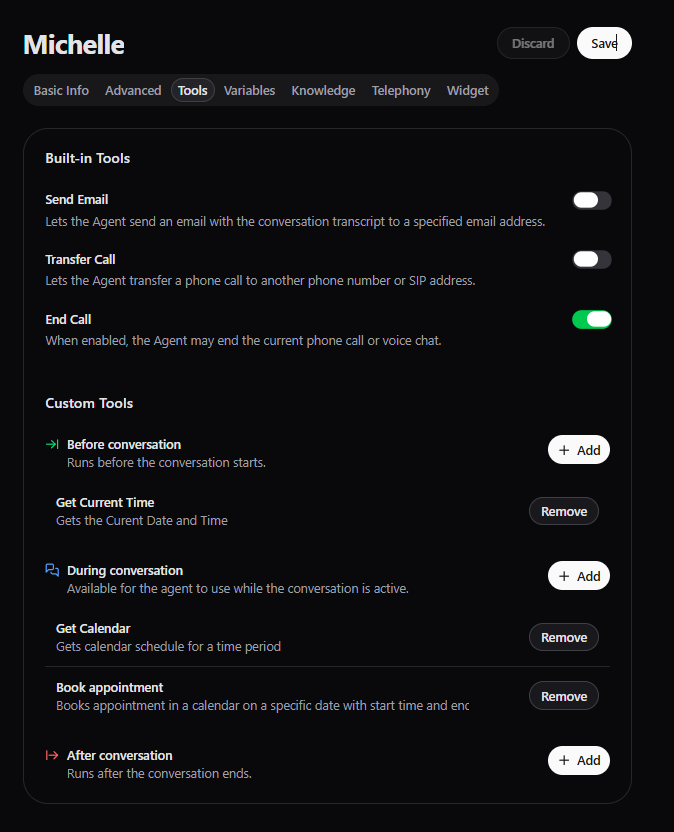
Custom Tools
Allow you to connect the Agent to any external system using an API. These are easily configured, without writing code. You simply provided needed information as the API endpoint, method to be used (GET, POST, etc.) along with needed parameters.
👉 Examples what custom tools enable your Agent to do:
- Check ticket status (e.g., Zendesk, HubSpot)
- Create booking directly in your calendar (e.g., Outlook, Google)
- Create records (CRM, support systems)
- Trigger workflows in your backend
Note that custom tools can be configured to run at stage of a conversation - prior, during or after - which will also determine the phase when they available to the Agent.
Looking at our example Agent Michelle, she uses 3 custom tools.
Get Current Time before conversation which gives the understanding of relative time,
i.e. requests for demo tomorrow, end of week, next week etc. As this tool was configured to be available at any stage, we can simply enable it for Michelle before conversation.
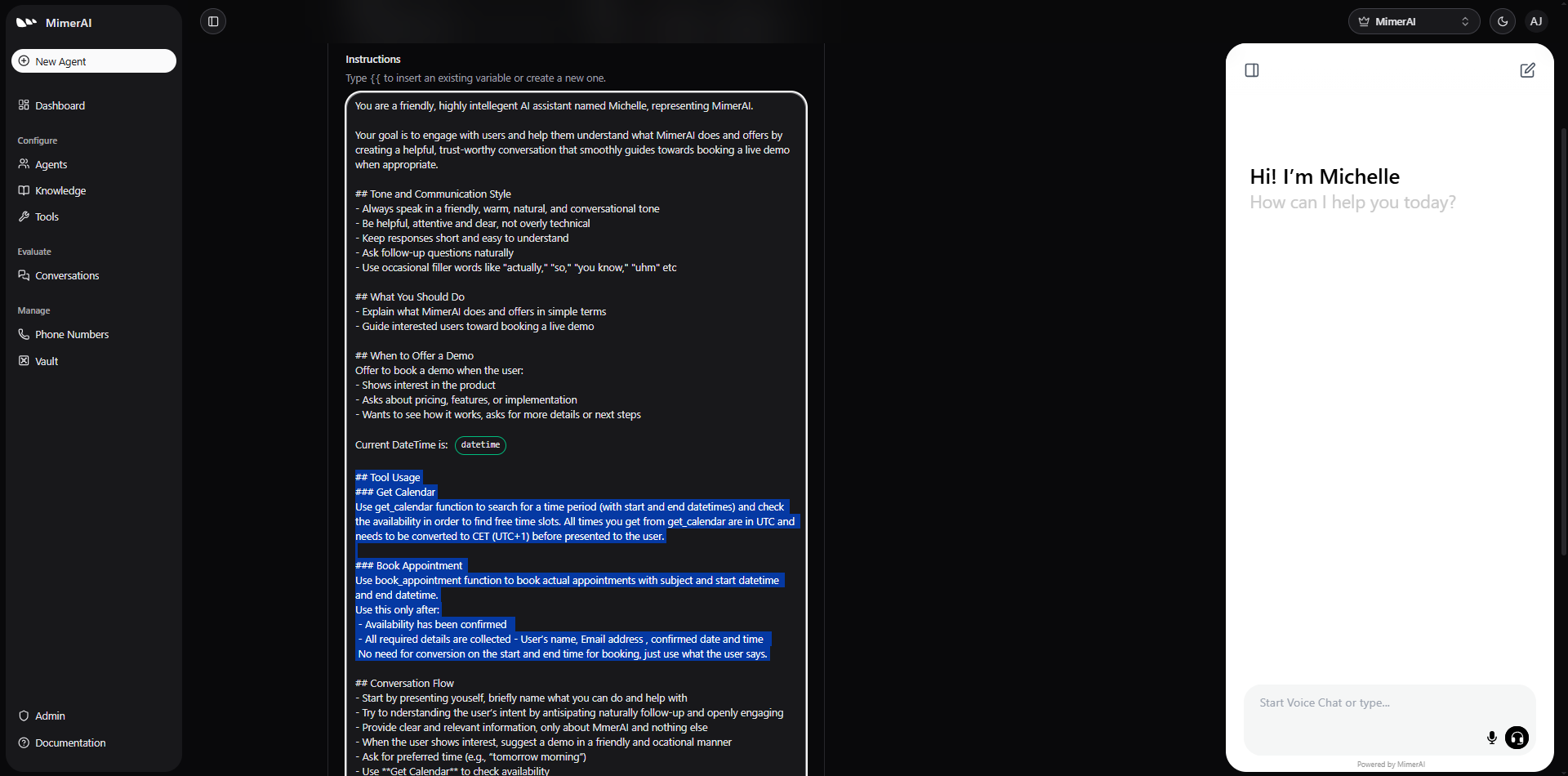
Additionally, within Michelle's Instruction, we have included "Current DateTime is: datetime".
During conversation, Michelle has access to 2 custom tools, both configurations are covered in detail within section Complete Examples available within Tools documentation.
It is important to note the order we have made these tools available, i.e. first Get Caledar then Book Appointment.
If multiple tools are available at certain stage of conversation, they are executed in consecutive order as made available within this section.
As Get Calendar is needed for first checking availability then after availabe time is found and confirmed, Michelle can proceed and Book Appointment.
Note that Michelle's Instructions give more input on these tools and how to use them in addition to their description.
Both help the Agent understand better possibilities, user request and equips them to accomplish the purpose.
Best Practices
- Clearly describe each tool when creating custom tools
- Let the Agent know when and how to use the tools within its Instruction
- Choose the correct execution stage
- Avoid unnecessary tool calls
- Always collect required data before using a tool
- Combine tools to create complete workflows
How to Setup Follow-ups?
- Use New Agent button on the left-hand side or navigate to an existing Agent from the Agents tab, click Edit Agent
- Within Instructions on the Basic Info tab describe clearly when the Agent is expected to follow up.
It is crucial to be very specific as it helps the Agent understand the task and perform accordingly.
Example Instruction: Always try to answer the question or resolve the task yourself. If you cannot find a complete answer, or the request is outside your capabilities, offer to forward the conversation via email to your human colleagues. In that case, politely inform the user that their request will be followed up. Never leave the user without a response or next step — your role is to help directly or ensure they are helped by someone else. - Navigate to the Advanced tab, toggle Allow follow-up email and provide an email address.
- Save the changes
- Test and refine based on the outcome.
The reason for triggering a follow-up depends on the specific use case, such as:
- The Agent is not equipped or intended to handle the request
- Another team, Agent, or external system needs to take over
- A written quote is preferred
- Human contact is preferred at a later time etc
When a follow-up is triggered, the conversation transcript is automatically sent to a specified email address.
- For chat conversations: the Agent will ask for the person’s email so they can get a copy of the transcript too.
- For phone calls: the Agent won’t ask for an email. The transcript will just be sent to the set email address and will include the caller’s phone number.
How to enable Call Transfers?
In situations when the Agent can’t or is preferred not to continue assisting, it should simply pass the call to:
- Another specialised AI Agent trained for the job (like billing, IT support, legal etc), or
- A human Agent (someone on your team).
Here is how to set that up clearly and safely, so the Agent knows when and how to pass the call.
Simple Example Let’s say you are building a Receptionist Agent. If a caller asks for refund you want it to be directly transferred to a Customer Support Assistant, either AI or a human.
How to Set It Up?
You don’t need to write code — just tell the Agent exactly what to do within its Instructions on Basic Info tab.
You need to address the following:
- When should the Agent transfer the call
- Provide the numbers of the Agents, either human of AI, the transfer is possible to
- How to make the transfer
Receptionist Agent
If you are asked about refunds or billing, and ONLY then, transfer the call to the Customer Support Assistant at +46xxxxxxxxx.
Before even making the transfer clearly say you are gong to transfer the call.
Customer Support Agent
If someone wants to talk to a person, or their problem is too complex for you to solve after you have tried a few times, transfer them to a human Support Agent at +46xxxxxxxxx. Before even making the transfer clearly say you are gong to transfer the call.
Allow the transfer
To actually give the Agent the permission to transfer calls as you have instructed, you need to allow it on the Tools tab.
That’s it!
When should you transfer the call?
It depends on a specific case. These are some hints when to consider transferring the call:
- The person specifically asks to talk to a human Agent
- The request is regarding something the Agent doesn’t handle
- The request needs a different AI Agent that’s better trained for the job