User Management
Intended for Admin users
As an Admin user, you can manage other users — invite others, give them certain roles / user rights and remove them — all from the Admin tab in the bottom of your lefthand side.
This guide shows how to:
- Invite team members
- Manage their user rights
- Control who can work where
Invite Team Members
Admin users can invite other people to help manage and build Agents.
- Go to the tenant, sub-tenant, or client where you’re an Admin.
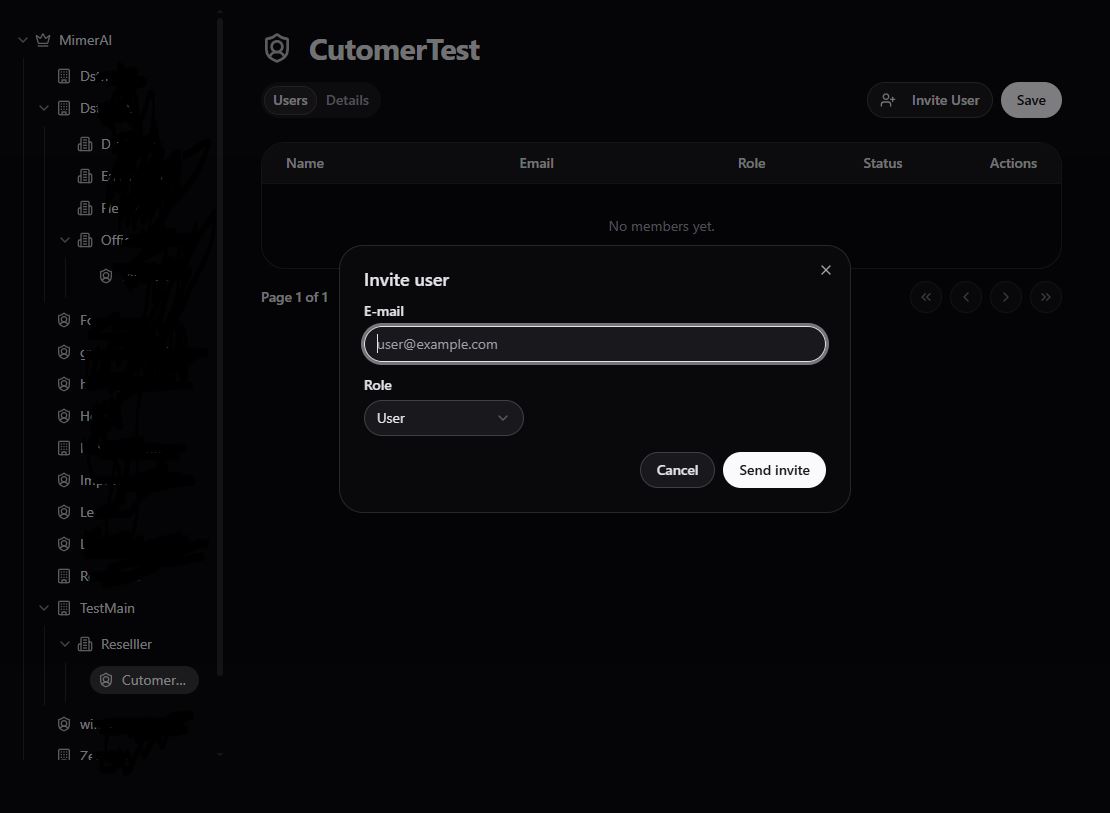
- Click Invite User
- Enter their email address
- Choose their role
- Admin → Can invite others, manage tenants, Agents, and settings.
- User → Can help build and manage Agents.
- Click Send Invite.
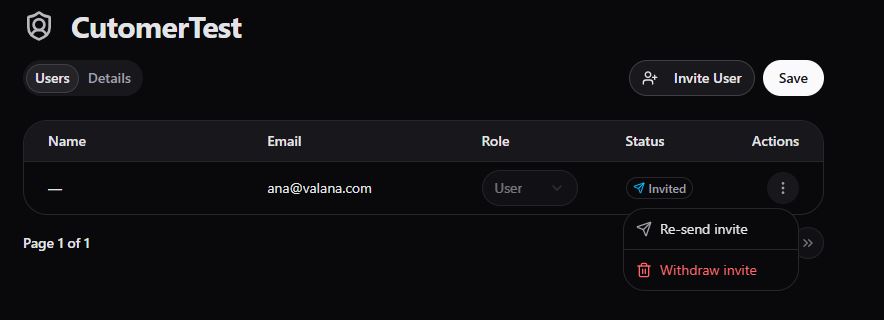
You will immediately see the new user under users tab. Its Status is set to Invited.
You can even choose to withdraw the invitation or to re-send it.
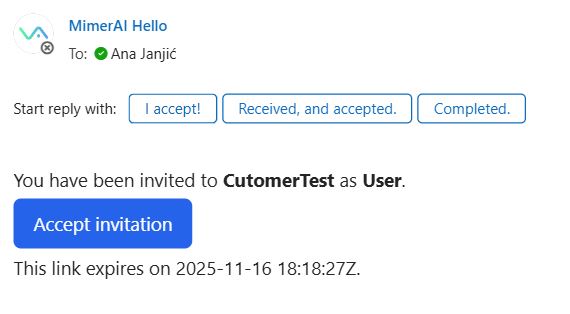
The invited team member receives an email, similar to the following.
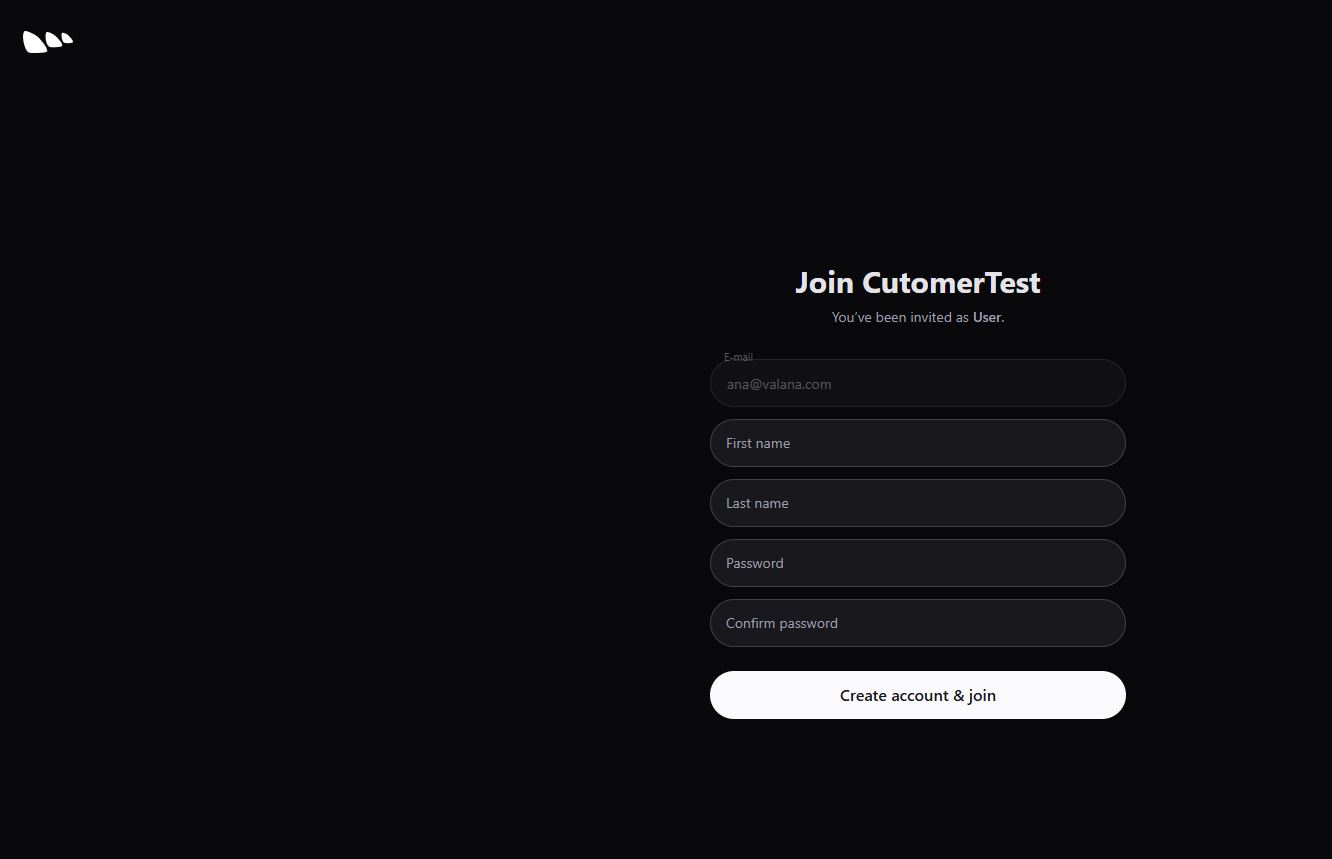
After clicking on Accept Invitation, the invited team lands on sign-up page to create a its user.
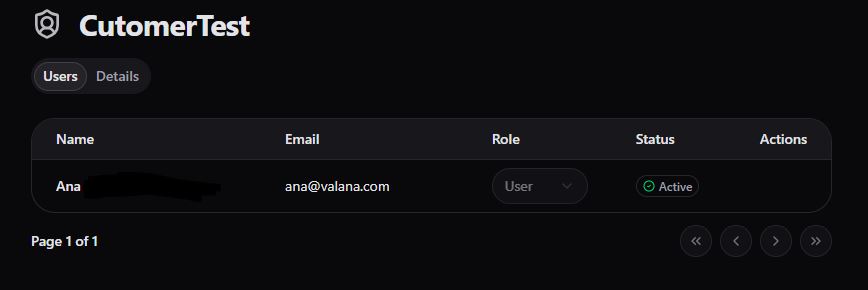
Immediately, the user’s status is updated to Active.
Manage User Rights
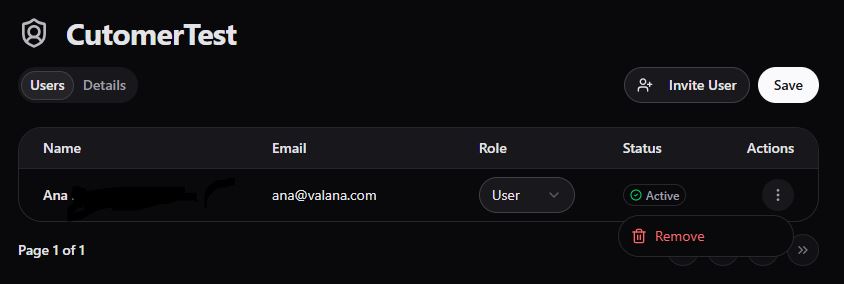
The Admin controls and manages the user under its tenant all the cildren tenants.
In this specific case, the Admin user could upgrade the role from User to Admin or remove the user.
What Admins Can Do
If you’re an Admin, you can:
- Create, manage and remove sub-tenants or clients
- Invite team members
- See all Agents under your level
- Remove users if needed
Note
Example Let’s say you run an agency:
- Under your "My Agency" tenant, you create a Sub-Tenant: "Sales Team"
- Then add a Client: "Client ABC" You (Admin) invite:
- Jane to help with Client ABC → she sees only that client
- Alex to help with Sales Team → he sees everything under "Sales Team"
That’s it!
Simple and flexible — just build your structure, invite your team, and start creating voice agents together.